Microsoft SQL Server data in Dixa
Show Microsoft SQL Server customer data inside Dixa conversations, queried live whenever an agent opens a conversation. No ETL, no sync lag, no code.
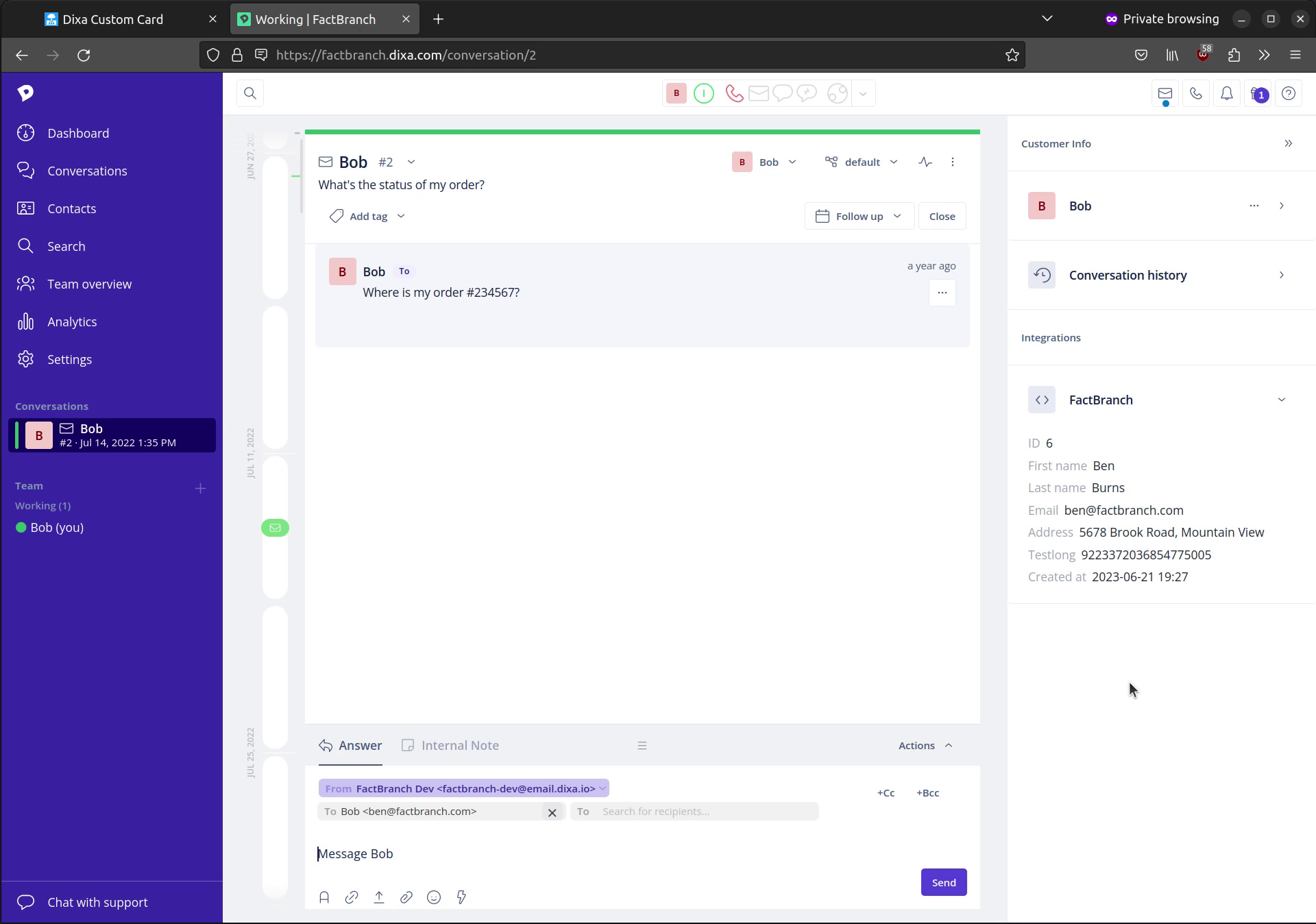
Plenty of enterprise support teams run Microsoft SQL Server behind their products — customer accounts, subscriptions, order history, licensing state, internal notes. Dixa doesn't know about any of that by default, so agents end up tab-switching to an internal tool or a database client, searching by email or ID, and pasting the answer back into the conversation. On a busy shift that adds up to hours.
Ready to show SQL Server data in your Dixa tickets?
14-day free trial · No credit card required · Live in 10 minutes
FactBranch fixes that by running a live SQL Server query every time a Dixa conversation is opened, and rendering the result as a Custom Card alongside the conversation. The agent sees the data they need without leaving Dixa.
How it works
FactBranch is a visual pipeline builder, not an ETL tool. There's no data warehouse in the middle, no sync schedule to tune, no copies of customer records sitting in a third-party database. Dixa passes the conversation context (requester email, conversation ID, and anything else you want) to FactBranch via a Custom Card webhook. FactBranch runs your T-SQL query against your own SQL Server database, using the conversation context as parameters. The results are rendered into an HTML Card you design.
Each step is a node in the visual editor. You write one T-SQL query and one HTML template. Everything else — the Dixa integration, the parameter passing, the connection pool, the rendering — FactBranch handles.
Connecting to SQL Server
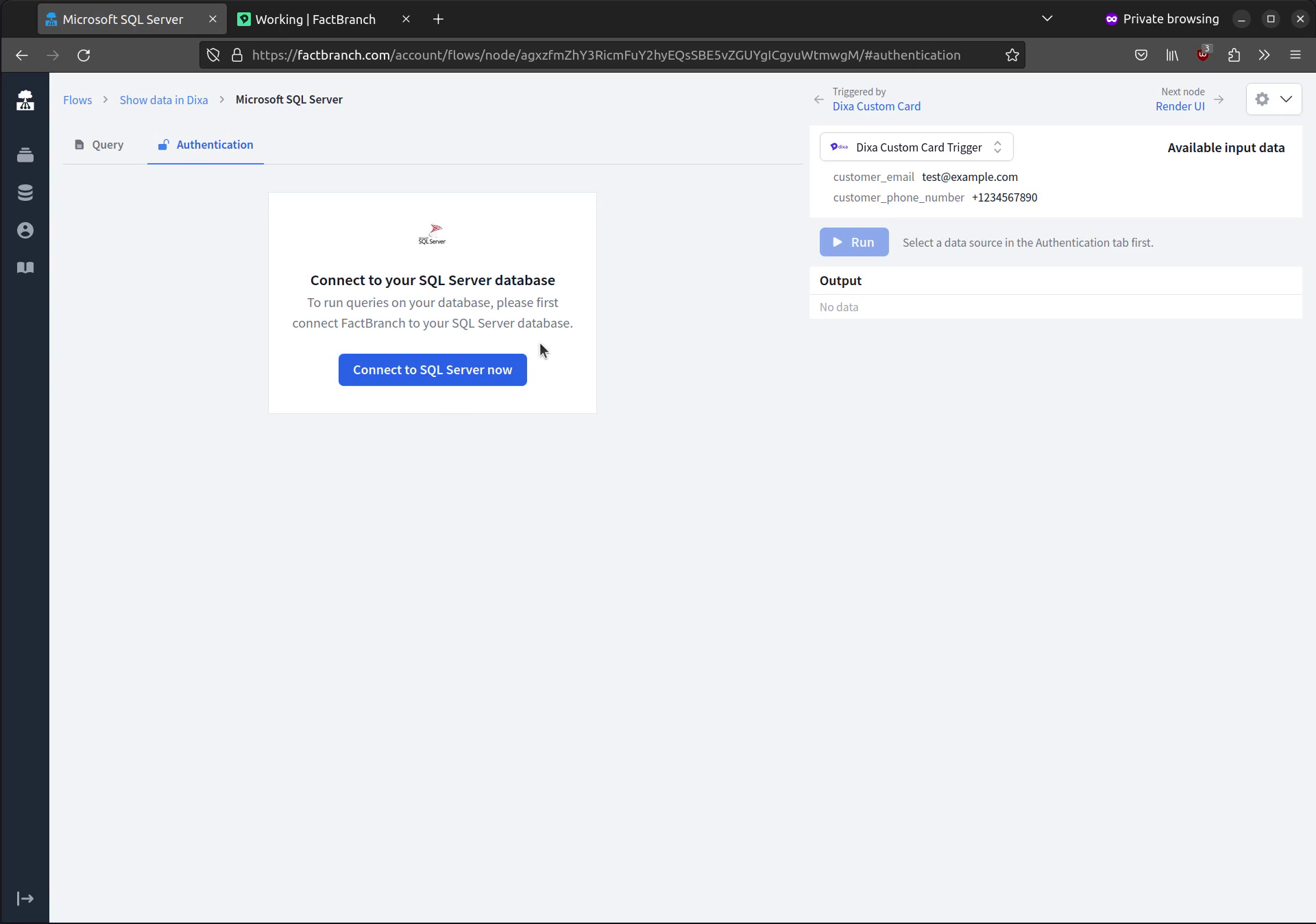
You add your SQL Server connection once: hostname, instance, database,
credentials. FactBranch recommends a dedicated read-only login for this —
a SQL Server principal with SELECT on only the tables or views you want
to expose. If your server is behind a firewall, FactBranch can route
requests through a static IP so you can safely allowlist us.
Writing the query
You write the query directly against your own SQL Server instance. Conversation context is available as variables you can reference inline: email address, conversation ID, anything else Dixa sends through. Run the query against your live database from the editor to see results before you hook it up to the Custom Card.
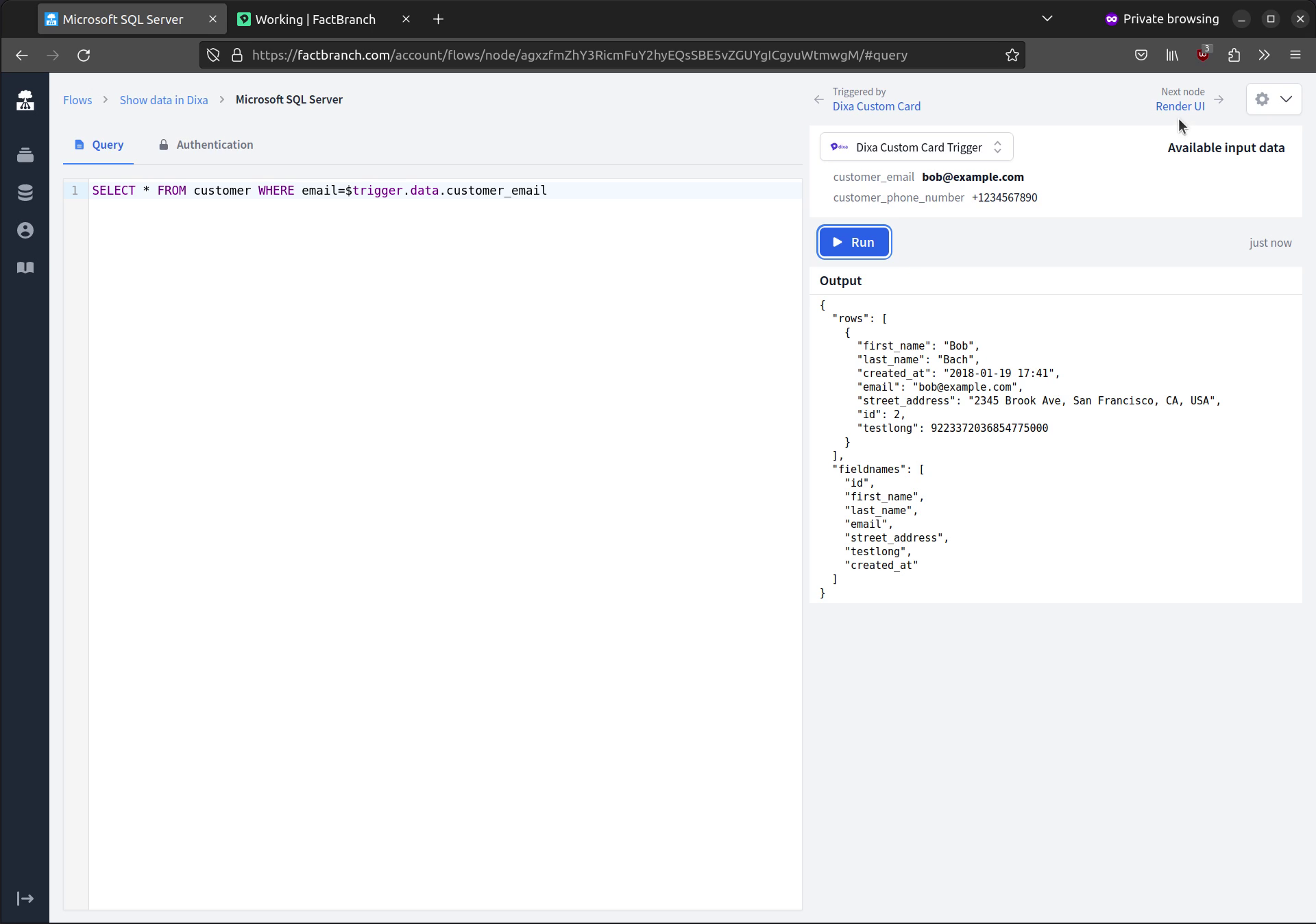
What you show is up to you. A typical enterprise support team might surface the customer's licensing state, account manager, and renewal date; open tickets tied to the same account; or licensed seat counts. E-commerce teams show recent orders, fulfilment status, and lifetime value. Internal-tool teams show permissions and recent activity. If you can write it in T-SQL, you can put it in the Dixa Custom Card.
Designing the Custom Card
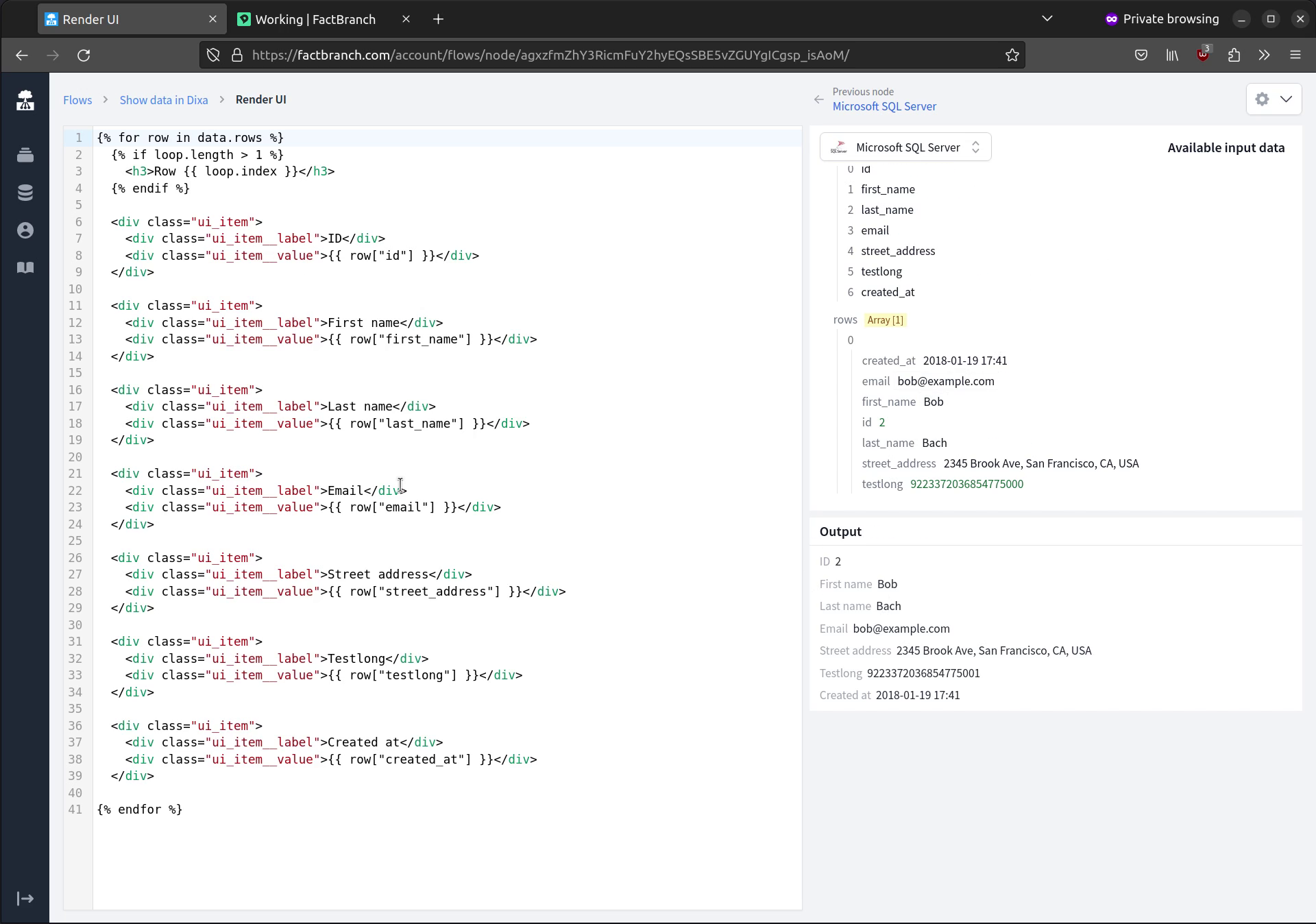
Once your query returns results, FactBranch pipes them into a display node where you design the Dixa Card. There's a "Generate a UI" button that produces a working HTML template from the shape of your query results — a sensible starting point you can then edit. You can tweak the template directly, add conditionals for empty or edge-case data, and style it with CSS. The templating language is Jinja2-compatible.
Keeping it safe
Your SQL Server stays where it is. FactBranch connects out to it with a
dedicated read-only login — we recommend creating a SQL Server principal
for FactBranch with the minimum privileges it needs, usually SELECT on
the specific tables or views you want to expose. If your server is behind
a firewall, FactBranch can route requests through a static IP so you can
safely allowlist us. For extra isolation, run queries against a read
replica or Availability Group secondary.
Credentials are stored encrypted. We don't cache query results by default, so every conversation gets a fresh read; there's no stale data to worry about, and no long-lived copies of your data in our systems.
Setup
Most teams are live in about 15 minutes. Create a free FactBranch account, add a SQL Server connection with read-only credentials, write the T-SQL query you want the Card to run, and design the Card layout in the display node. The final step is adding the FactBranch Custom Card URL in your Dixa settings — agents see the Card on the next conversation they open.
See the full walkthrough in our Dixa Custom Card documentation or watch a support agent use the sidebar in practice.
Ready to show SQL Server data in your Dixa tickets?
14-day free trial · No credit card required · Live in 10 minutes