JTL-Wawi data in Zendesk
Show JTL-Wawi customer and order data inside your Zendesk tickets, queried live on every ticket open. No ETL, no sync lag, no code.

JTL-Wawi is the ERP of choice for a lot of European e-commerce teams — customers, orders, shipments, returns, inventory, prices. Zendesk agents handling support tickets need that data to answer questions about order status, missing shipments, returns, refunds. But JTL-Wawi doesn't connect to Zendesk by default, so agents end up opening JTL-Wawi on a separate machine (or remote desktop), searching by email, and typing the answer back into Zendesk manually.
Ready to show JTL-Wawi data in your Zendesk tickets?
14-day free trial · No credit card required · Live in 10 minutes
FactBranch fixes that by querying the JTL-Wawi database live every time a Zendesk ticket is opened, and rendering the result as a panel inside the ticket sidebar. The agent sees the customer's JTL-Wawi data without leaving Zendesk.
How it works
JTL-Wawi stores its data in a Microsoft SQL Server database. FactBranch connects to that database the same way JTL-Wawi itself does, runs a SQL query with the Zendesk ticket's requester email (or phone number) as a parameter, and renders the result into the Zendesk sidebar.
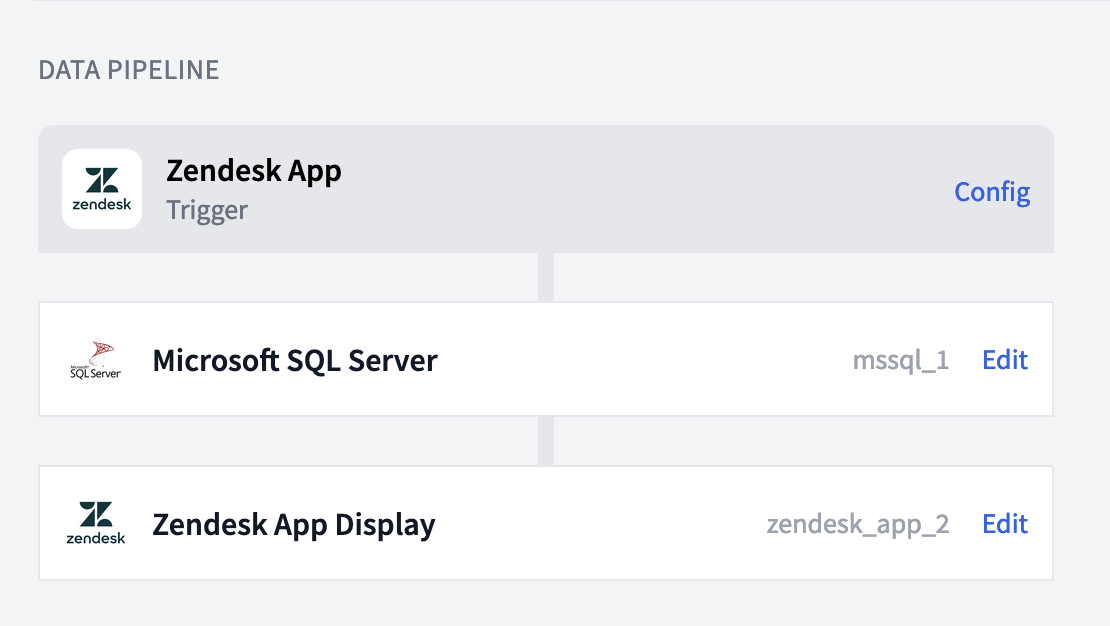
There's no middleware to install, no sync schedule, no separate database copy. The Zendesk app triggers the pipeline, the SQL Server node queries JTL-Wawi, and the display node formats the result. You write one SQL query and one HTML template — FactBranch handles everything else.
Writing the query
You write the query directly against the JTL-Wawi SQL Server. Ticket context is available as variables — the most useful ones for JTL lookups are the requester's email and phone number. The typical query looks up a customer by email or phone, then joins to their most recent orders, shipments, and return status.
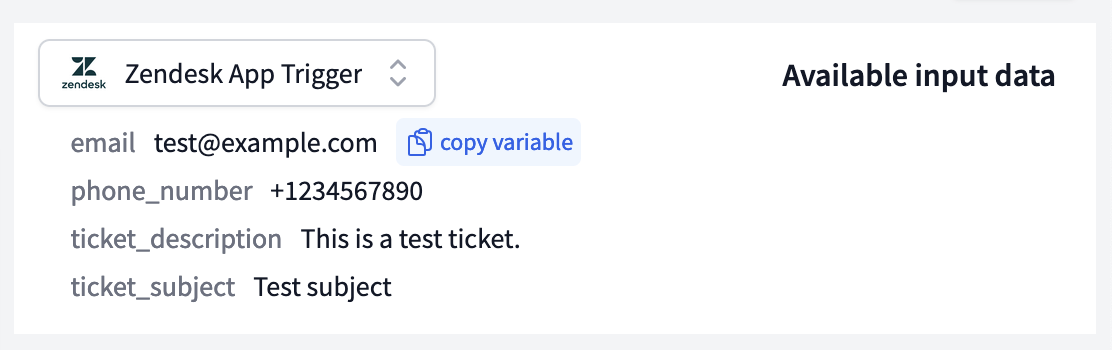
What you show is up to you. Most JTL-Wawi support workflows surface:
- The customer's master record (name, address, customer number).
- The 5-10 most recent orders with status, date, and total.
- Any shipments in progress or returns awaiting processing.
- Account notes or flags that the support team maintains in JTL.
If your JTL installation uses multiple shops, warehouses, or subsidiaries, the same query can filter by shop and return the right data for each ticket.
Designing the sidebar UI
Once your query returns results, FactBranch pipes them into a display node where you design the Zendesk panel. The "Generate a UI" button produces a starting HTML template from the shape of your data — you then edit it to match your brand and your agents' needs. Style it with CSS, loop over the order list, add conditionals for missing addresses or empty return histories.
Keeping it safe
Your JTL-Wawi database stays where it is. FactBranch connects out with a
dedicated read-only user — we recommend creating a SQL Server login for
FactBranch with SELECT on only the tables the support panel needs
(customers, orders, shipments). JTL-Wawi is frequently run on-premise or
in a private cloud; in those cases, FactBranch can route requests through
a static IP so you can safely allowlist us through your firewall.
Credentials are stored encrypted. We don't cache query results by default, so every ticket gets a fresh read — no stale data, and no long-lived copies of your ERP data in our systems.
Setup
Most teams are live in about 15 minutes. Create a free FactBranch account, add a SQL Server connection pointing at your JTL-Wawi database with read-only credentials, write the SQL query that looks up the customer by email or phone, and design the panel in the display node. The final step is installing the FactBranch app from the Zendesk marketplace and pasting in your API key — agents see the JTL-Wawi panel on the next ticket they open.
See the full walkthrough in our SQL Server documentation or watch a support agent use the sidebar in practice.
Ready to show JTL-Wawi data in your Zendesk tickets?
14-day free trial · No credit card required · Live in 10 minutes