How to connect ChatGPT to Zendesk (with your own customer data)
Pipe your own customer data — subscription, order history, recent tickets, anything from your database — into a ChatGPT prompt and render the reply inside the Zendesk sidebar. Generic AI copilots don't know your customer. This one does.
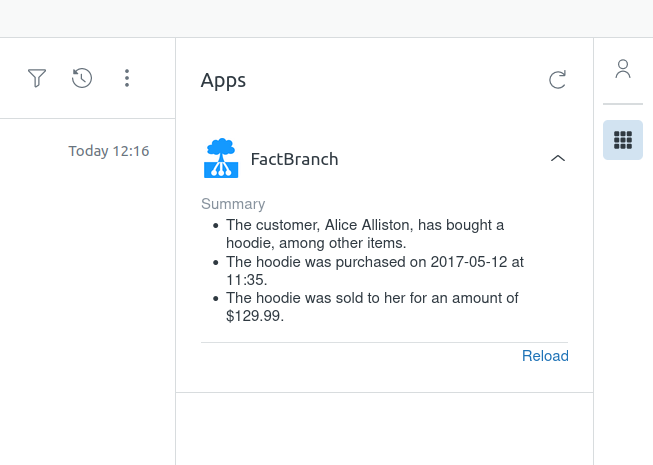
Most "ChatGPT in Zendesk" setups give agents a generic assistant that only sees the ticket text. It doesn't know what plan the customer is on, what they've ordered, whether their last three tickets were about the same bug, or that their renewal was cancelled yesterday. The reply suggestions come out generic because the model has generic inputs. The difference between a useful AI integration and a decorative one is the data you put in the prompt.
Ready to connect ChatGPT to Zendesk with your own customer data?
14-day free trial · No credit card required · Live in 10 minutes
FactBranch is the piece that solves that. It's a no-code pipeline builder that looks up your customer data live — from a database, spreadsheet, or API — and feeds it into a ChatGPT prompt together with the ticket context. The reply appears in the Zendesk sidebar the moment the agent opens the ticket.
How the pipeline is assembled
A FactBranch flow for ChatGPT-in-Zendesk has four nodes: a Zendesk trigger that fires when an agent opens a ticket, a data-lookup node that queries your own system (Postgres, MySQL, Google Sheets, Snowflake, HubSpot, whatever you use), a REST-API node that calls the OpenAI API with a prompt built from that data plus the ticket text, and a display node that renders the response in the ticket sidebar.
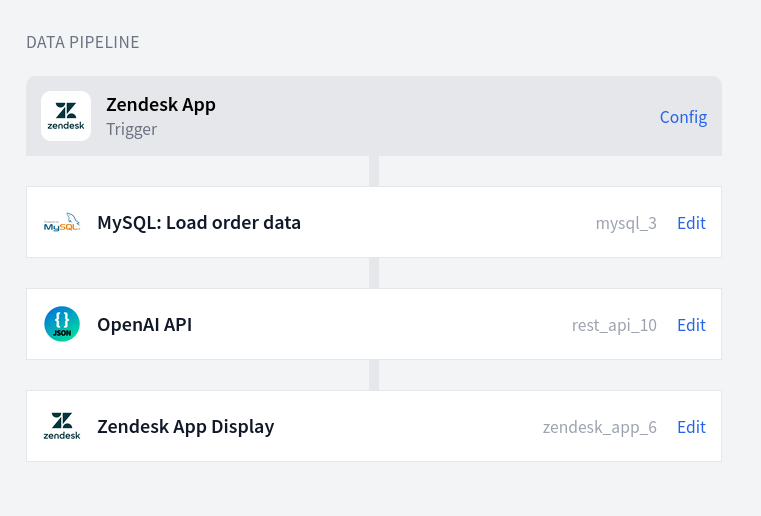
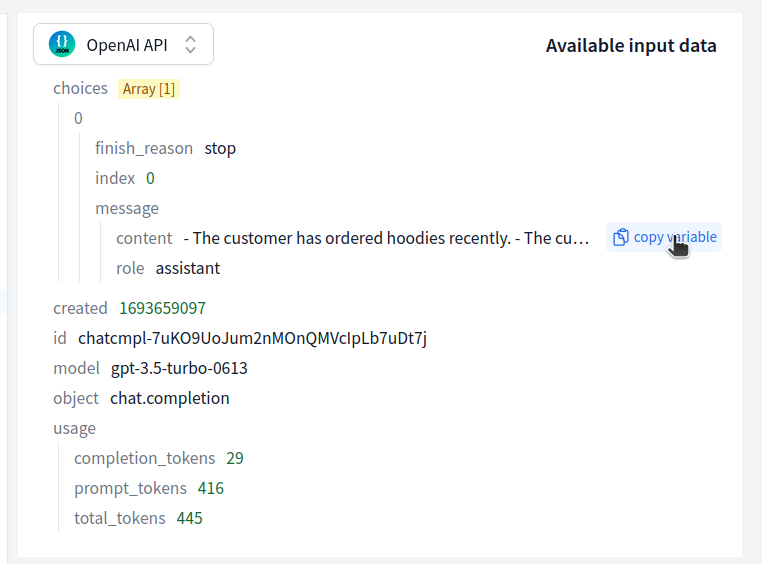
You build the flow visually. Each step's input is the previous step's output, so by the time the prompt is assembled, the ticket metadata, customer record, and anything else you want to reference is available as template variables you can drop into the prompt string.
What "customer data in the prompt" actually looks like
Instead of:
You are a helpful support agent. Here is a ticket: [ticket text]. Reply politely.
FactBranch lets you write:
You are a support agent at [Company]. The customer wrote: [ticket text]. Here's what we know about them: subscription plan Pro, billed annually, MRR $499, joined 14 months ago. Recent orders: [list]. Known flags: [flags]. Draft a reply in [tone]. Reference the relevant account details naturally.
That's a completely different quality of response, and none of it required the model to "understand your product" — you just gave it the data.
Typical things teams pipe into the prompt:
- Subscription / plan state, renewal date, payment status
- Recent orders, shipments, fulfilment state
- Permission and role info for internal tools
- Inventory or service availability for the customer's region
- Usage signals — last login, weekly active use, feature adoption
Use cases beyond draft-a-reply
Once the prompt has live data, you can do more than suggest replies. Common patterns:
- Summarize customer context — one-line summary of the account, recent activity, and any red flags, shown at the top of the ticket.
- Pick the relevant record — when a customer has 30 orders, have GPT identify the one the ticket is probably about based on keywords.
- Suggest the next action — "refund and retry", "escalate to engineering", "send tracking link", based on the ticket and the data.
- Translate or rephrase — reply drafts in the customer's language with the right register for your brand.
- Extract structured fields — parse unstructured ticket text into fields you can write back to Zendesk or your own system.
Keeping it safe
You control two things separately: which customer data goes in, and how OpenAI handles it.
- Your database stays where it is. FactBranch connects with a dedicated read-only user. Credentials are stored encrypted.
- Your OpenAI API key lives in your FactBranch account and only FactBranch uses it to call the API. You can rotate it any time.
- Data sent to OpenAI is whatever you explicitly include in the prompt — you decide. OpenAI's API (as of the most recent policy) does not train on API inputs by default, but verify the current terms for your use case and consider an Enterprise / zero-retention agreement if sensitive data is in play.
- No caching — we don't store the GPT responses, so every ticket opens with a fresh call.
Setup
Most teams are live in about 30 minutes. Create a free FactBranch account, add an OpenAI API key as a REST-API data source, build a pipeline with a Zendesk trigger, a data-lookup node for your system of record, a REST-API node that calls OpenAI's chat completions endpoint with your prompt, and a display node for the Zendesk sidebar. Install the FactBranch app from the Zendesk marketplace and paste in your API key — agents see the AI panel on the next ticket they open.
See the REST API documentation for the OpenAI-call specifics, or watch a support agent use a ticket sidebar in practice.
Ready to connect ChatGPT to Zendesk with your own customer data?
14-day free trial · No credit card required · Live in 10 minutes