Google Sheets data in Zendesk
Show Google Sheets customer data inside your Zendesk tickets, read live on every ticket open. No ETL, no sync lag, no code.
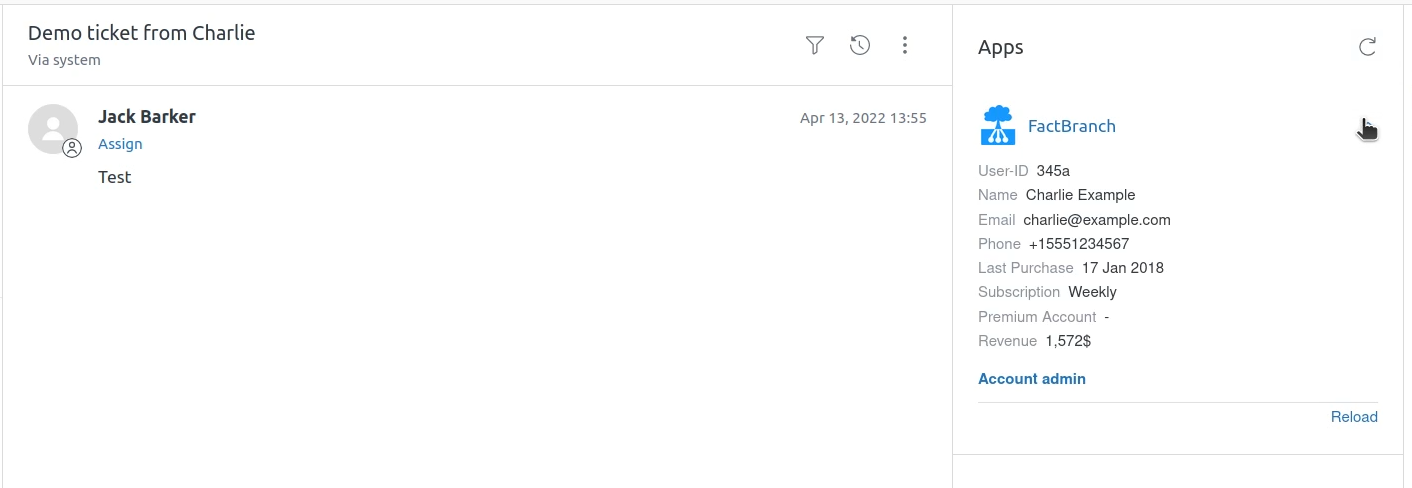
Google Sheets is often the "database before the database" — where ops and customer success teams track accounts, partners, commissions, shipping exceptions, churn reasons, anything that hasn't made it into the product yet. When a support ticket comes in that needs data from one of those sheets, agents end up alt-tabbing to Google Drive, opening the right spreadsheet, searching by email or order ID, and pasting the answer back. That lookup costs the team hours per week — and drags down customer support metrics.
Ready to show Google Sheets data in your Zendesk tickets?
14-day free trial · No credit card required · Live in 10 minutes
FactBranch fixes that by reading the spreadsheet live every time a Zendesk ticket is opened, and rendering the matching row as a panel inside the ticket sidebar. The agent sees the data they need without leaving Zendesk.
How it works
FactBranch is a visual pipeline builder, not an ETL tool. There's no intermediate copy of your spreadsheet stored on our end, no sync schedule to tune. The flow is simple: the Zendesk app passes the ticket context (requester email, ticket ID, organization, and anything else you want) to FactBranch. FactBranch reads the relevant range from your Google Sheet, uses the ticket context to filter down to the matching row, and renders the result in an HTML panel you design inside the Zendesk sidebar.
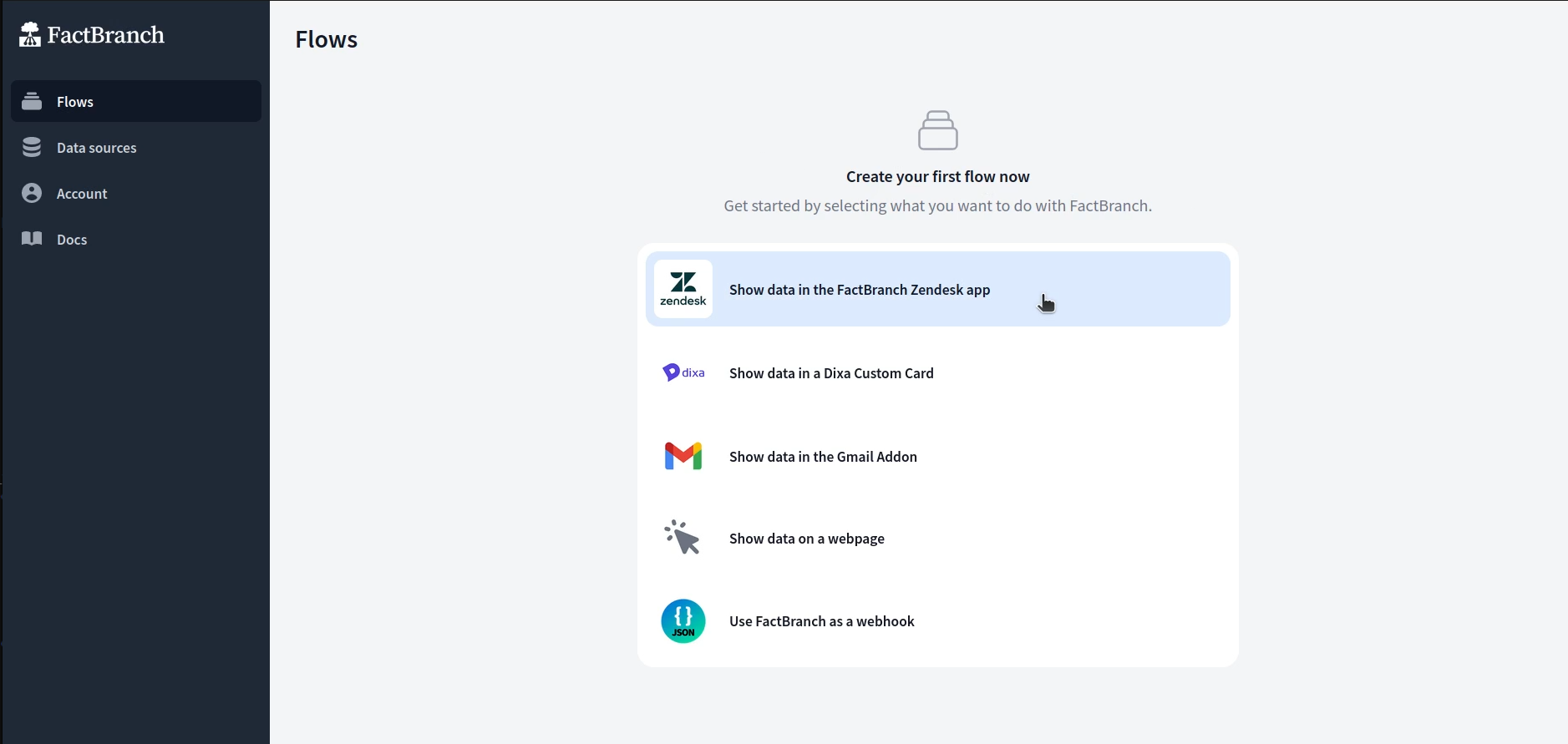
Each step is a node in the visual editor. You pick a sheet and range, write a filter expression, and design one HTML template. Everything else — the Zendesk integration, the OAuth handshake, the parameter passing, the rendering — FactBranch handles.
Reading from the sheet
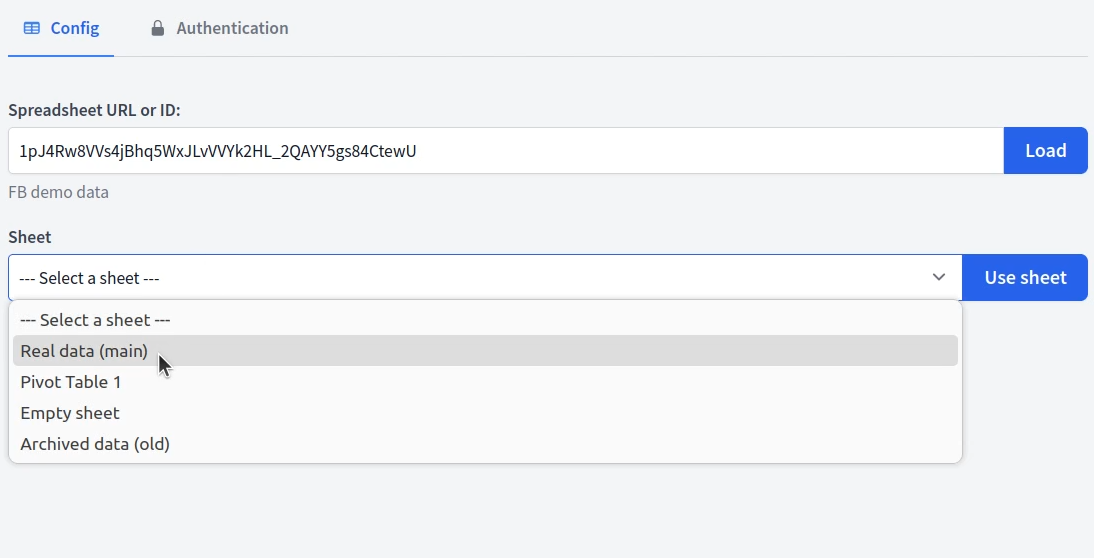
After connecting your Google account, you pick the spreadsheet, the tab, and the cell range you want to read. FactBranch pulls that data and shows it to you in the editor so you can see exactly what came back. The first row is treated as headers — so the columns you see on the sheet become the fields you reference later.
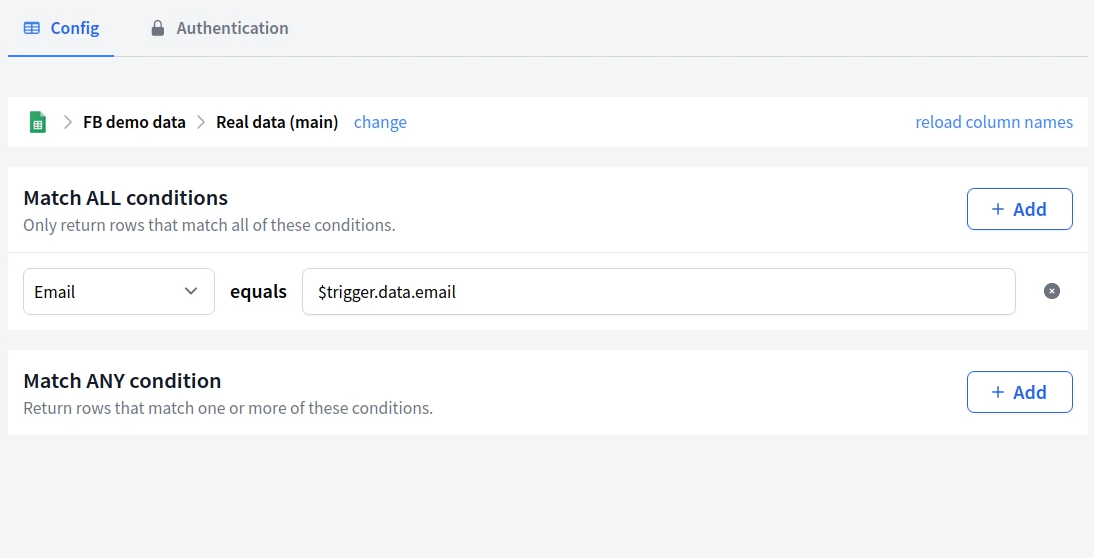
Ticket context is available as variables you can reference to filter the sheet down to the right row: email, ticket ID, organization fields, anything you've passed through from Zendesk. Typical filters are a direct match on an email column or a lookup by account ID, but you can also combine conditions, handle missing rows, and fall back to a default row if the ticket's customer isn't in the sheet yet.
Designing the sidebar UI
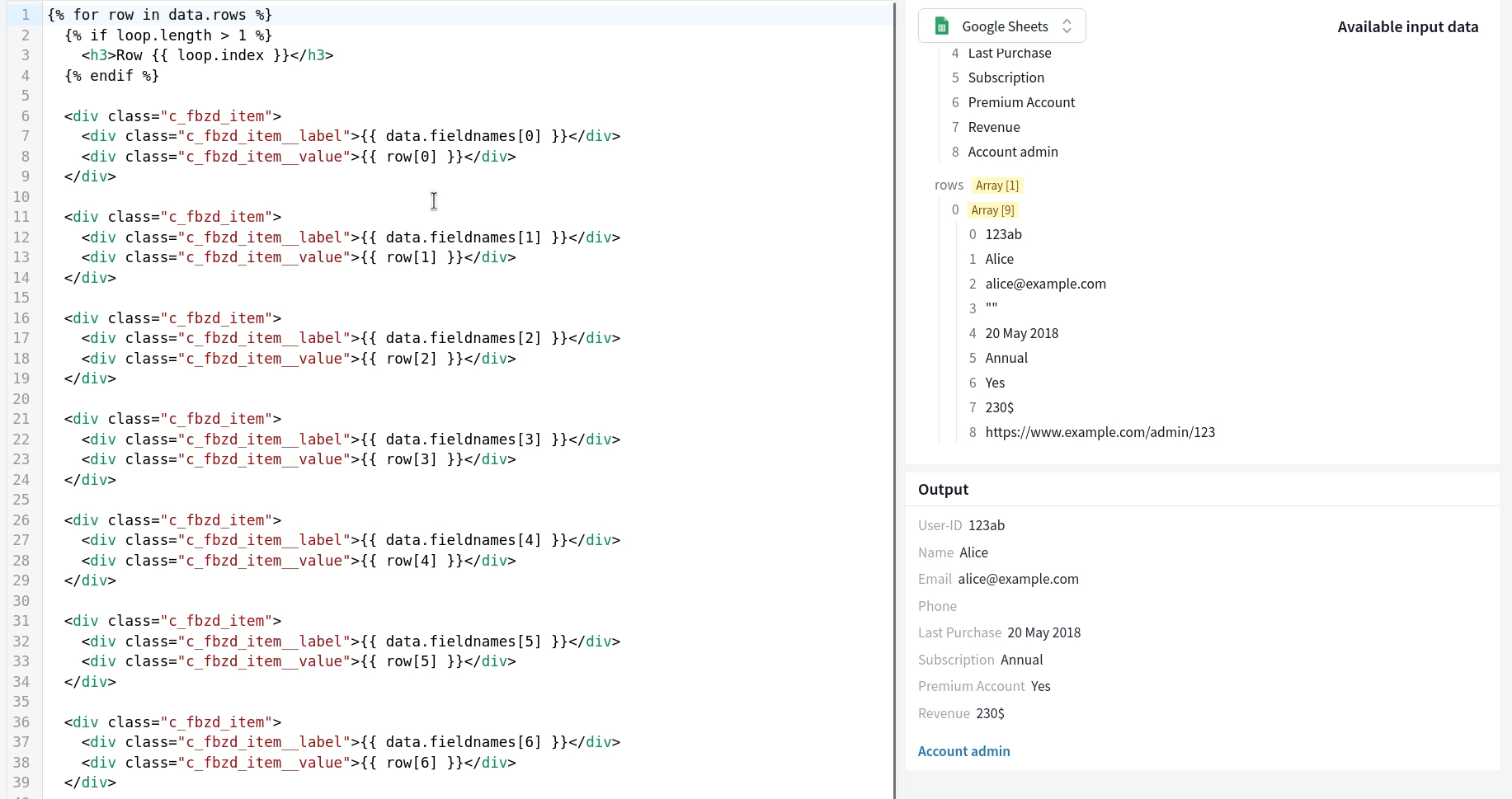
Once you have the matching row (or rows), FactBranch pipes the data into a display node where you design the Zendesk panel. There's a "Generate a UI" button that produces a working HTML template from the shape of your data — a sensible starting point you can then edit. You can tweak the template directly, add conditionals for empty rows, and style it with CSS. The templating language is Jinja2-compatible, so loops and filters work the way you'd expect.
Keeping it safe
Your spreadsheet stays in your Google Workspace. FactBranch connects via OAuth and only accesses the sheets you explicitly authorise — we recommend granting access to a dedicated spreadsheet for support lookups rather than an account-wide scope. You can revoke access from your Google Workspace admin at any time.
We don't cache sheet data by default, so every ticket gets a fresh read; there's no stale data to worry about, and no long-lived copies of your spreadsheet in our systems.
Setup
Most teams are live in about 10 minutes. Create a free FactBranch account, connect your Google account, pick the spreadsheet and range, write the filter that matches the ticket's customer, and design the panel in the display node. The final step is installing the FactBranch app from the Zendesk marketplace and pasting in your API key — agents see the sidebar on the next ticket they open.
See the full walkthrough in our Google Sheets documentation or watch a support agent use the sidebar in practice.
Ready to show Google Sheets data in your Zendesk tickets?
14-day free trial · No credit card required · Live in 10 minutes